TRAINER HW's and EXAMS
MyITLab
Professor Schmidt's MIS/CS courses
***
WEBSITE LINKS
***
COURSE LINKS


NAVIGATING TRAINER SIMULATIONS
Scroll Down for More Information!
Click or Scroll Down for Pictures
- SIMULATION ENVIRONMENT: Everything is completed in a Virtual Environment. All File Downloads, Pictures, Text, etc. will be Available Virtually by Clicking the Correct Location on the Ribbon or within the Simulated File.
- RESET BUTTON: Often necessary after numerous incorrect clicks/attempts. Clicking this option will wipe clean your previous inaccurate clicks and start the question over without using another attempt. (See the Tips & Tricks Webpage)
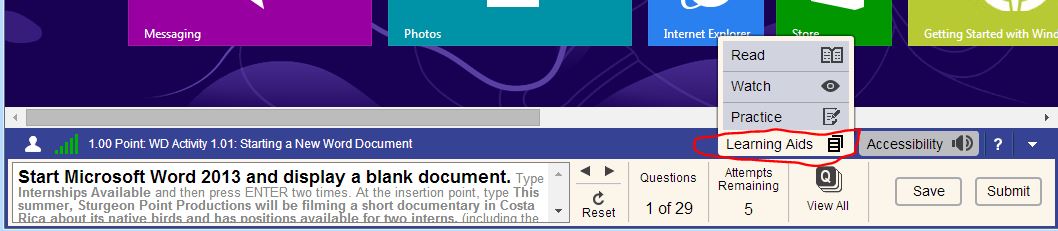
- LEARNING AIDS:
- Trainer Exams do Not have Learning Aids
- Utilize the Learning Aids in the Trainer HW's to Watch an instructional Video, Read Steps, or Practice the Question!
-
SAVING:
- Trainer Exams are Timed and cannot be saved
- Trainer HW's can be saved and completed later by clicking 'Save' instead of 'Submit'. If you click the 'x' in the top of the screen the attempt will submit!
- When Reviewing Submissions for Trainer EXAMS, the 'Launch Training' Button DOES NOT launch the Exam question. It does launch the Question Equivalent in the Trainer HW
- Use the 'Methods to Complete' column to assist you in determining correct steps to complete a question.
- Locate the Desired Trainer Assignment (Use ONE of the
methods below):
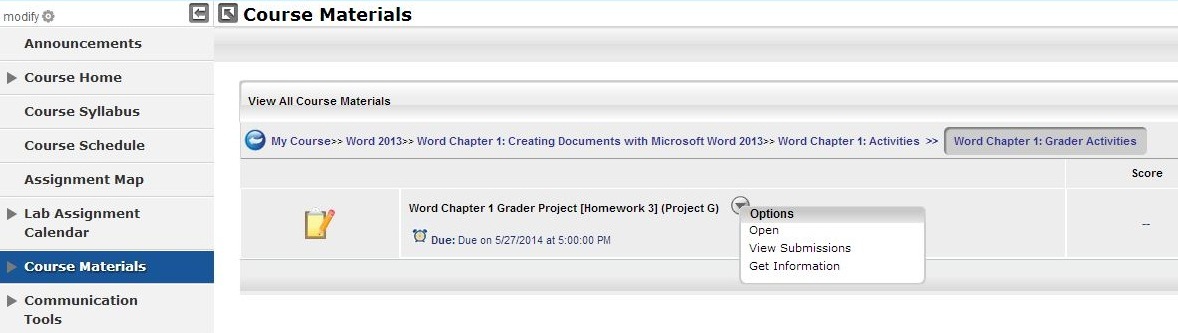
- Click on the Course Materials Tab, Click desired module, click desired chapter, click activities folder, click simulation folder
- Click on the Lab Assignment Calendar Tab, Click on the due date
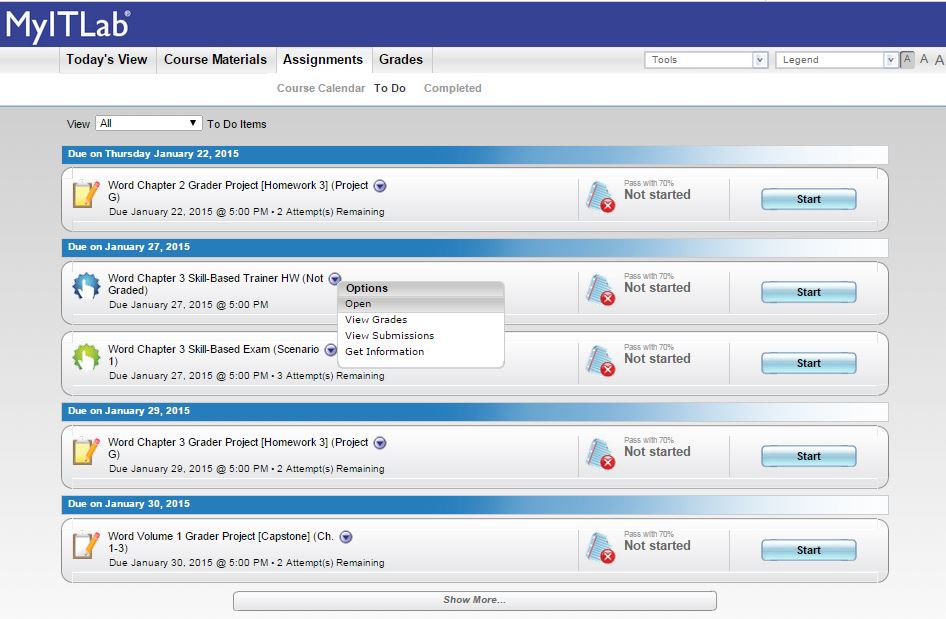
- Click on the To Do / Completed Tab, Click ToDo
- Open the Desired Trainer Assignment (Use ONE of the methods
below):
Click for Picture
- Click on the ICON or TITLE of the desired Trainer Activity
- Click on the down arrow and then click Open
COMPLETE TRAINER HW
- Unlimited Attempts
- Not timed
- Saves were you left off
- Does not count against you
- Learning Aids for asisstance
- Almost identical to the Exam
COMPLETE TRAINER EXAM
- 3 Attempts (keeps best score)
- Timed: 75 minutes
- Required Course Points
STARTING TRAINER SIMULATION
STEPS #1 & 2: GETTING STARTED
SIMULATION TOOLS & OPTIONS
CONTROL PANE (Navigation Pane)
-
The Control Panel is what you use to control the Skill Based Trainer HWs and Exams.

STEPPED INSTRUCTIONS
-
Each question has multiple steps. The CURRENT STEP needed to be completed appears in BOLD. (See picture above)
-
As a each step is satisfied within the question the next step becomes BOLDED.

LEARNING AID VIDEOS
- Click Learning Aids in the Control Panel for the
individual question

- Click Video in the expanded Pane
RESET OPTION
-
Click Reset to ERASE MEMORY of all INCORRECT ACTIONS and start FRESH! Does NOT take away an attempt...USE OFTEN!

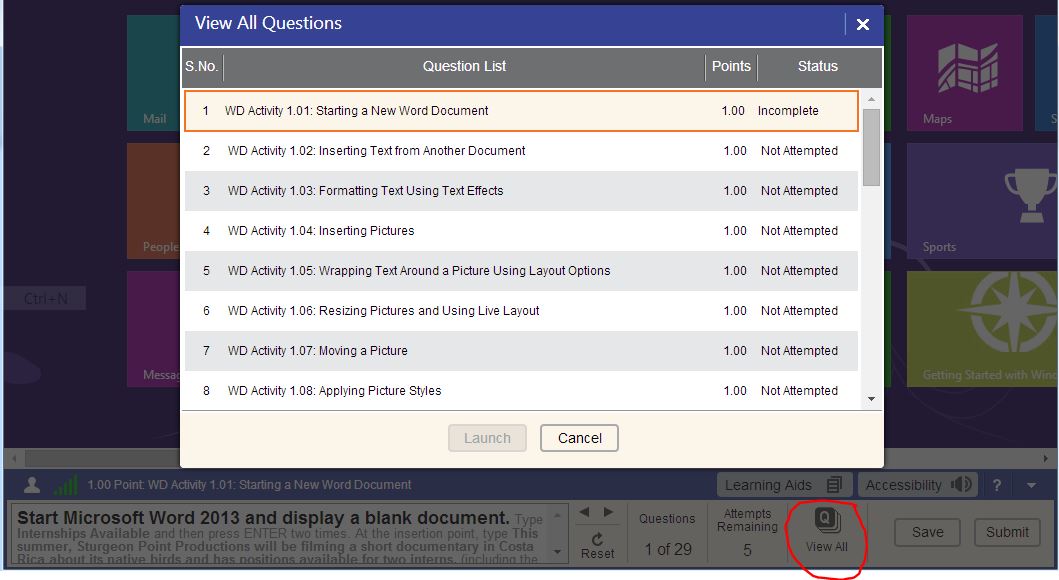
VIEW ALL OPTION
-
Click View All to move around within the Skill Based Trainer and complete questions out of order.