review submissions
MyITLab
Professor Schmidt's MIS/CS courses
***
WEBSITE LINKS




***
COURSE LINKS




Scroll Down for HOW TO REVIEW SUBMISSIONS of Trainer and Grader Assignments!
Click and/or Scroll Down for Pictures
- "Not Detected": Means that
your table, text, or graphic was inserted in the incorrect location.
- If you did include this item in the submitted file it will be highlighted in yellow and crossed out in red in the Submission with Live Comments file that you can download from the Review Summary screen.
- "Was Not Set To": When
followed by a text statement in quotations, Means that the text in
the instruction file was not typed correctly.
- Usually this is a mispelled word. Sometimes it is incorrect punctuation or grammar marks.
- "Was Not Set To": When
followed by an instruction in quotations, Means the exact color,
font, size etc was not selected.
- If you believe you did this in your submitted document, download it and check. Sometimes the instructions state to add it to the paragraph and you added it to individual lines.
WHAT CAN THE STUDENT DO?:
GRADER PROJECT SUBMISSIONS
-
Download the file you uploadedDownload the file you uploaded
-
View your submitted file with comments
-
View the items you missed
-
View a Correct file with comments on what you did incorectly
SKILL BASED TRAINER SUBMISSIONS
-
View the Key strokes you made
-
View whether each key stroke was correct or incorrect
-
Get instructions on Correct Methods to complete each step
-
Choose instructions for a keyboard or for a mouse
-
See how long you spent on the Trainer, on each step
-
See how many points you earned
STEPS TO GET STARTED:
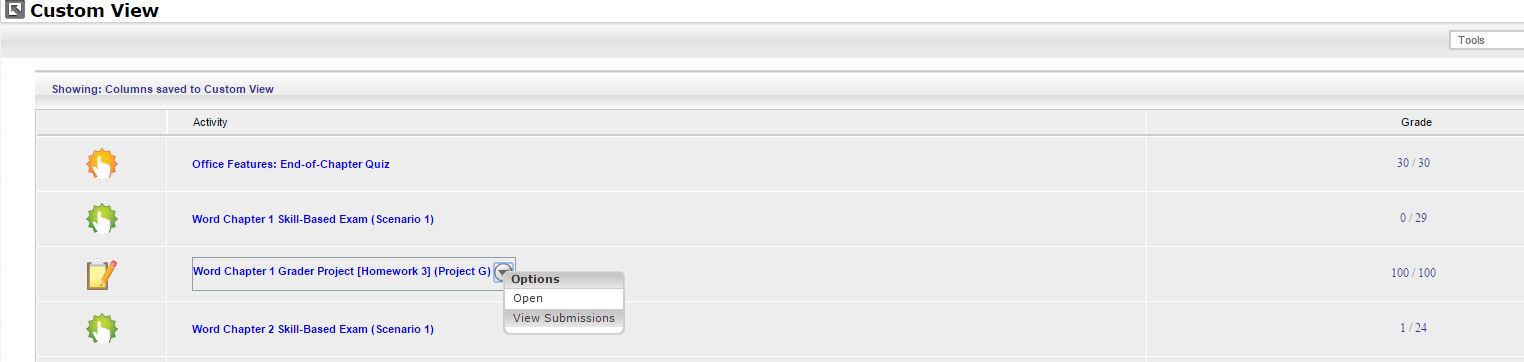
- Click on the Grade Button
- Click on the Custom View option
- Locate and Hover over the assignment of your choice
- Click on the Drop Down Arrow
- Click on View Submissions Click for Picture
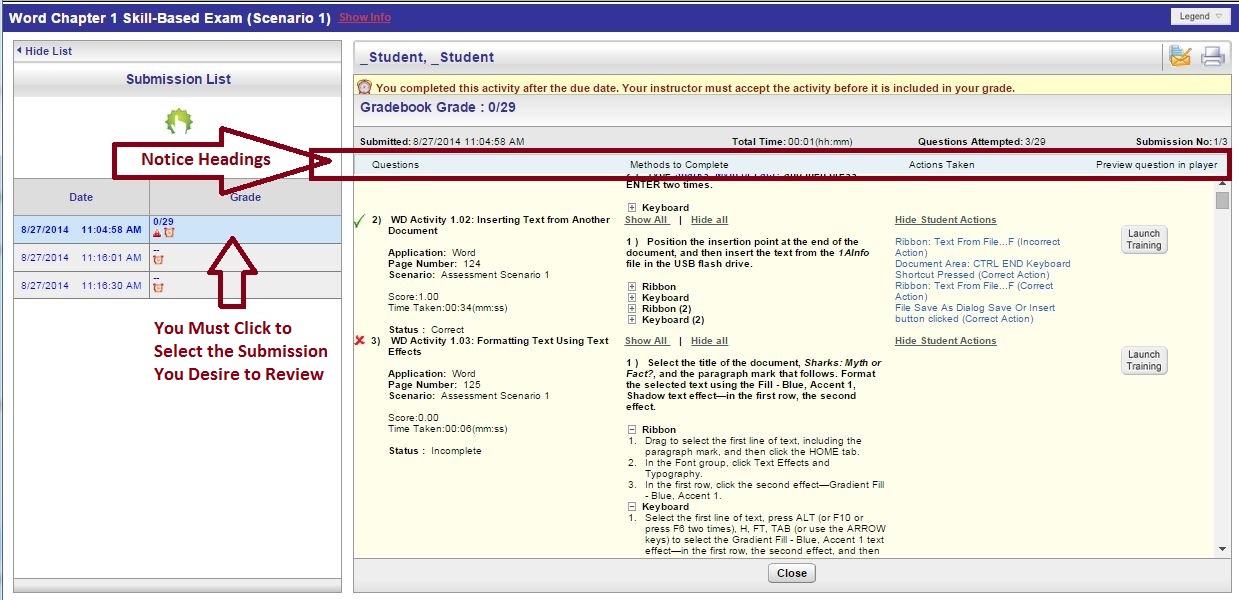
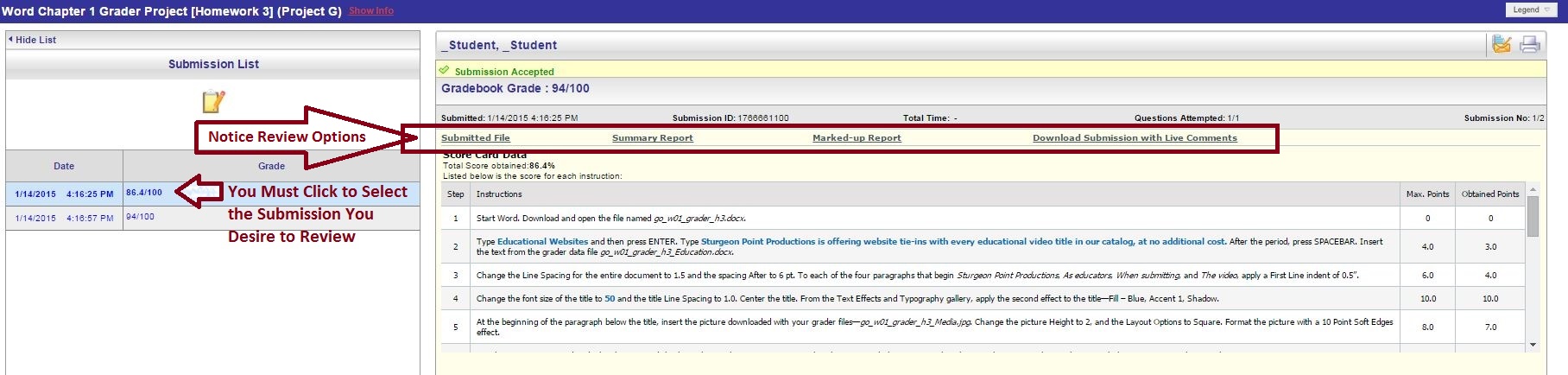
- Click on the Submission to the left that you desire to review Click for Picture-Trainer HW/Exam OR Click for Picture-Grader Project
- Complete the Steps to Get Started above
- Click to Choose the Review Format(s) You Prefer (options listed below)
- QUESTIONS: Notice the Red 'X' means you were incorrect, a Green Check Mark means you were correct, and nothing to the left of a number means you did not attempt the question.
- METHODS to COMPLETE: (You can "Show All" or "Hide All" for each question.) Having Trouble figuring out how to do the step. All accepted ways are listed and labeled according to preferred method of Key Board or Mouse Clicks.
- ACTION TAKEN: Student actions are in blue. Whether the action was correct or incorrect is in (). If you did not attempt the question this area is blank
- PREVIEW: You can launch the Trainer HW question equivalent to this Exam question and preview/work it.
---Click for Picture of Trainer Review Submission Screen detailing all bullet points listed directly above.
---You can print or email the submission screen to yourself.
---It does have your name, points earned, Time spent, and attempt number
---Remember: My gradebook records the highest scored attempt.
- Complete the "Steps To Get Started" Above
- Click to Choose the Review Format(s) You Prefer (options listed below)
- SUBMITTED FILE: Download the file you originally uploaded (This is a copy of the file you submitted that was graded)
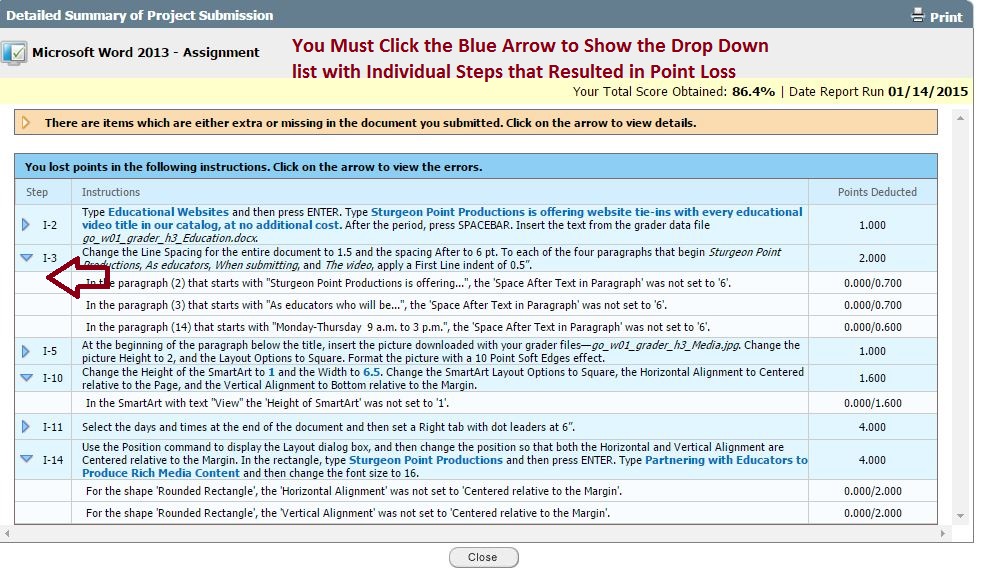
- SUMMARY REPORT: (Click for Picture) Pop up window of each question that you lost points from. Click the Blue Drop Down arrows to view the exact steps that you missed and the points allocated to that specific action.
- MARKED-UP REPORT: Download a correct version of the project with comments on what you did incorrectly. Little Red 'X' marks will appear where you did not complete something accurately. Click on the 'X' mark for details. (This option is for a more tech savy user)
- DOWNLOAD SUBMISSION WITH LIVE COMMENTS: (Click for Picture) Download a copy of your submitted file with comments placed where you did not recieve points. Click on the Note icons (or use comments view in PowerPoint) in order to see the details.
--- Click for Picture of Grader Project Review Submission Screen
---You can print or email the submission screen to yourself.
---It does have your name, points earned, Time spent, and attempt number
---Remember: My gradebook records the highest scored attempt.