GRADER PROJECTs
MyITLab
Professor Schmidt's MIS/CS courses
***
WEBSITE LINKS




***
COURSE LINKS




LOCATING and DOWNLOADING/UPLOADING GRADER PROJECT FILES
Scroll Down for DOWNLOAD and UPLOAD Information!
Click or Scroll Down for Pictures
- UNLIMITED DOWNLOADING: Students can enter the Grader Project Assignment and DOWNLOAD their starting files as many times as they like! (Even if it says this is the last time - as long as you are not uploading a file. Students can only click "Submit for Grading" TWICE!
- SAVING: Be sure to save all of your files in an ORGANIZED manner on your PERSONAL thumb drive dedicated to THIS COURSE. This will help ensure you upload the correct files for grading and that no other student gains access to your files.
-
UPLOADING: Students can ONLY enter the Grader Project Assignment and UPLOAD their completed Grader Project File TWICE!
- Be sure to upload the CORRECT file for the assignment Title in which you click Submit for grading.
Additional uploads are not allowed due to
incorrect files being uploaded! ONLY TWO UPLOADS PER
ASSIGNMENT!
- Locate the Desired Grader Project (Use ONE of the
methods below):
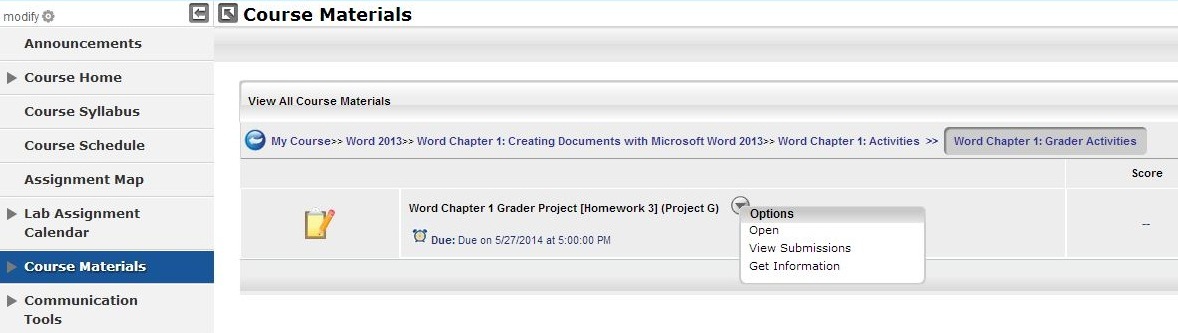
- Click on the Course Materials Tab, Click desired module, click desired chapter, click activities folder, click grader folder
- Click on the Lab Assignment Calendar Tab, Click on the due date
- Click on the To Do / Completed Tab, Click ToDo
- Open the Desired Grader Project (Use ONE of the methods
below):
Click for Picture
- Click on the ICON or TITLE of the desired Grader Activity
- Click on the down arrow and then click Open
DOWNLOAD STEPS
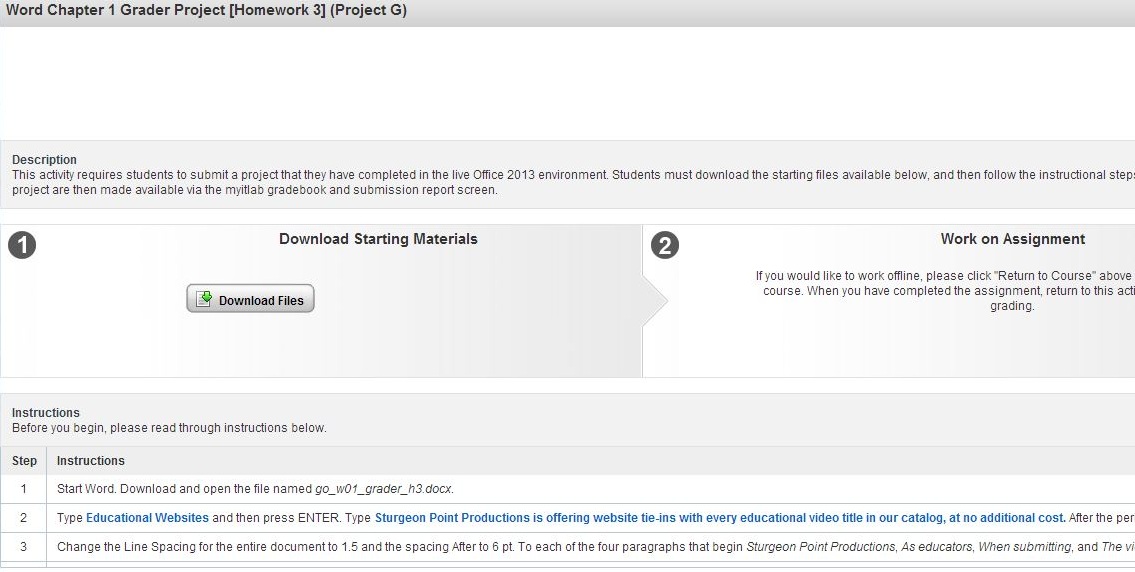
- Click on the Download Files button - Click for Picture
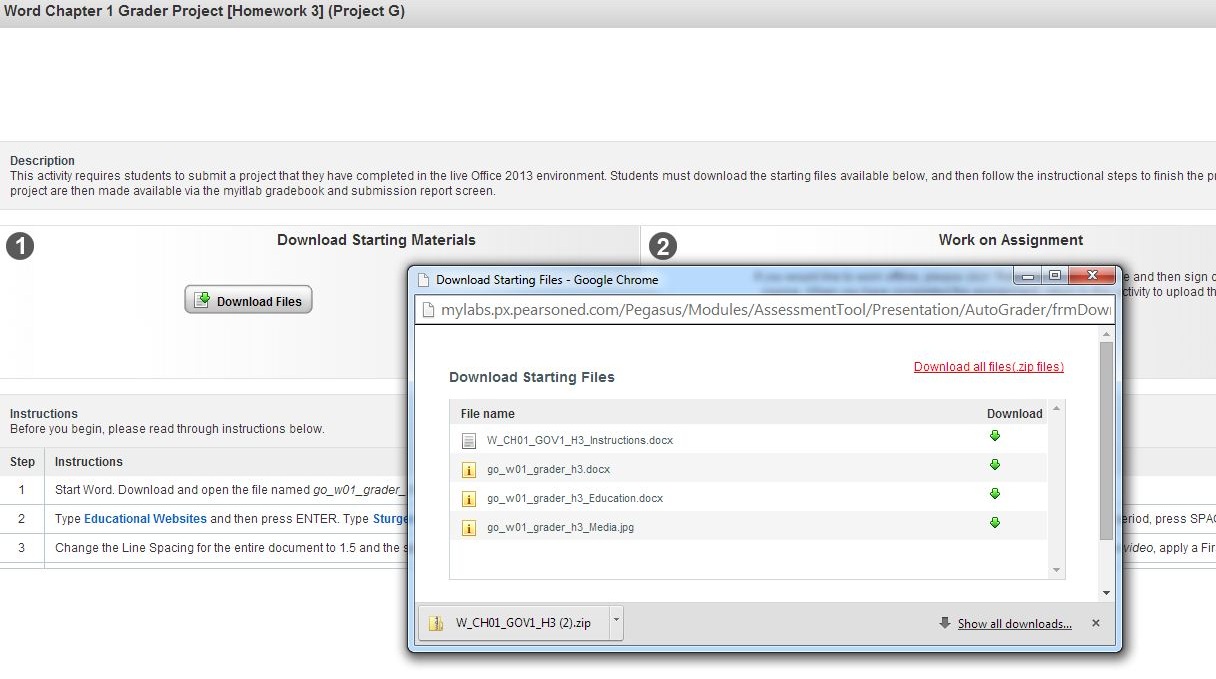
- Click on the Download all files in download popup window - Click for Picture
- Click on the downloaded zip file or Locate downloaded files on your computer - Click for Picture
- Transfer files to appropriately labeled folder on your thumb drive for this course - Click for Picture


UPLOAD STEPS
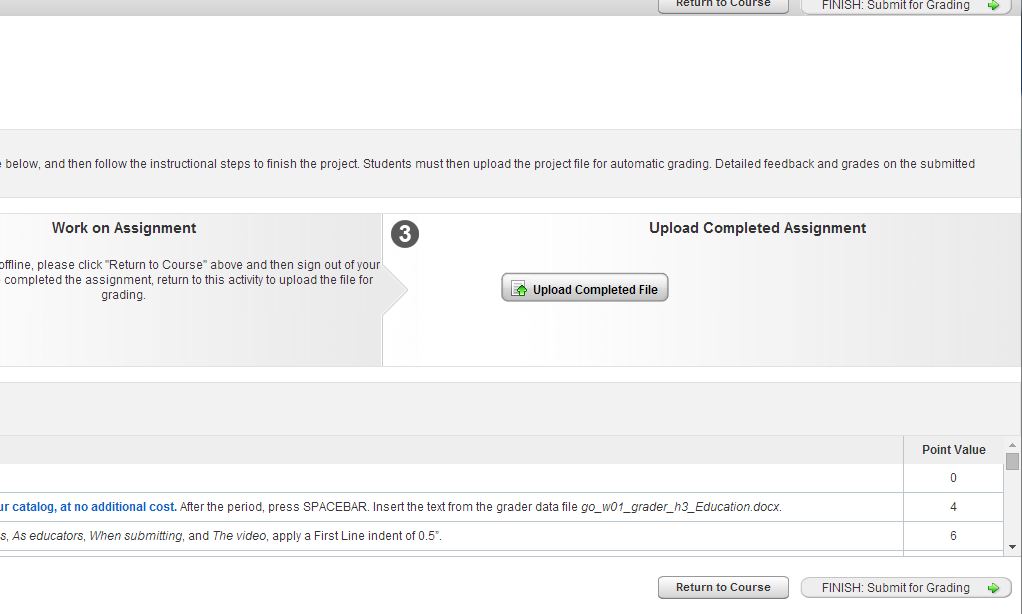
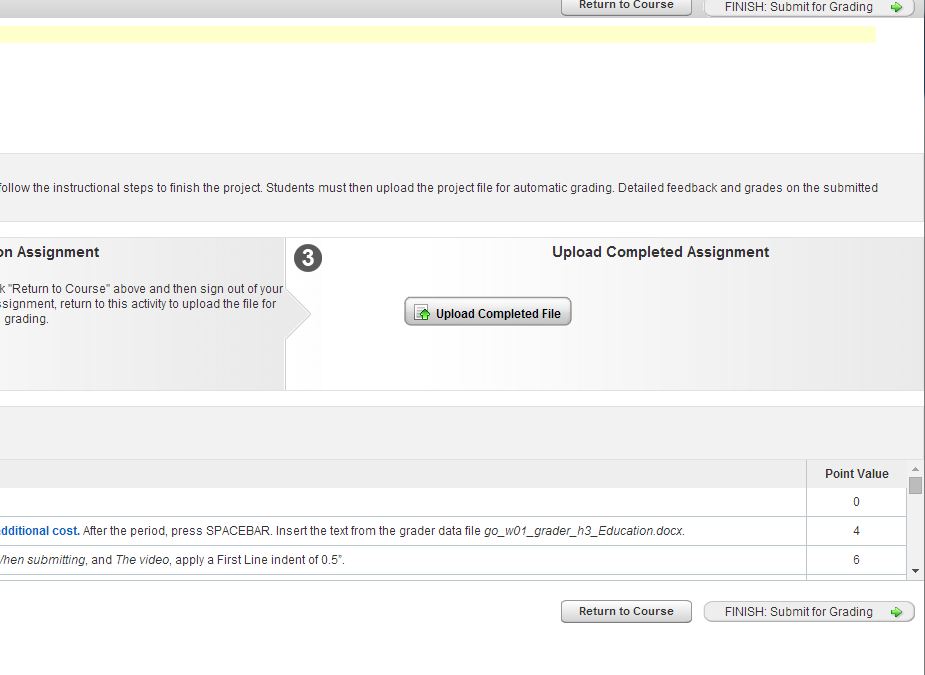
- Click on the Upload Completed File button - Click for Picture
- Click on the Choose File Button and locate and select the desired file for this assignment - Click for Picture
- Click Upload - Click for Picture
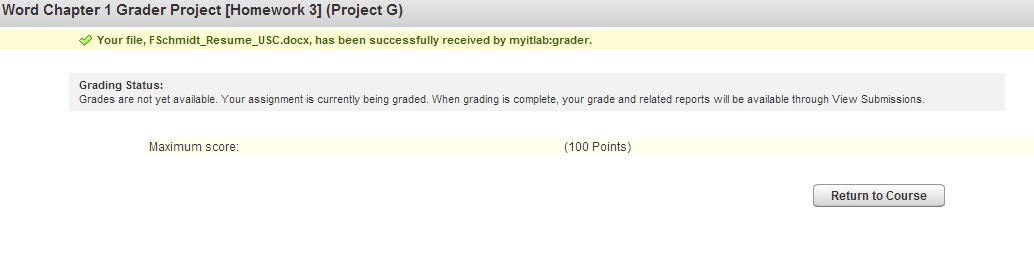
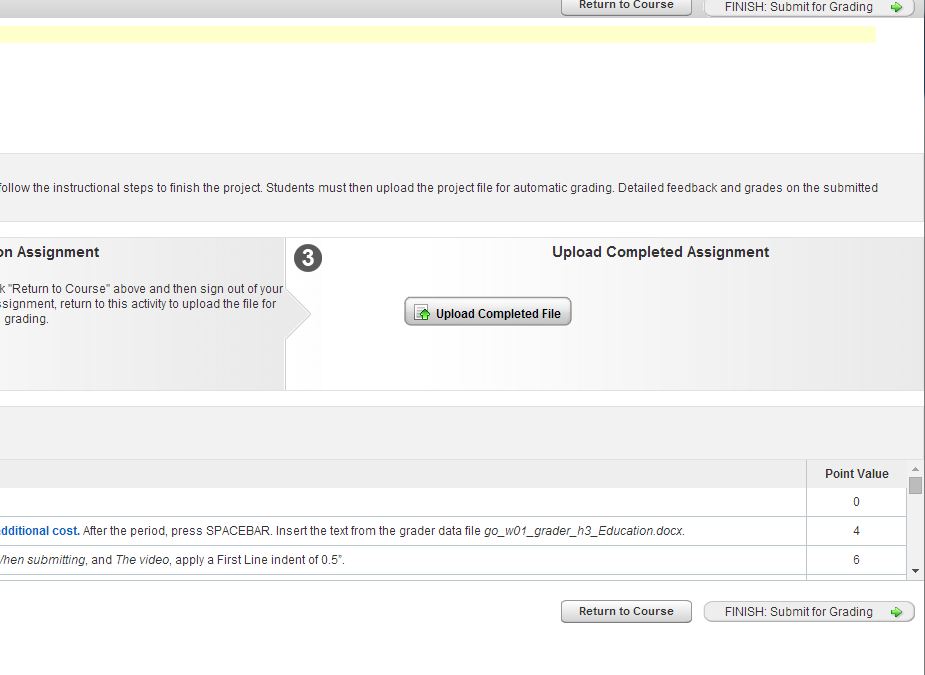
- Click FINISH: Submit for Grading - Click for Picture
- Review your submission and earned points - Click for Picture


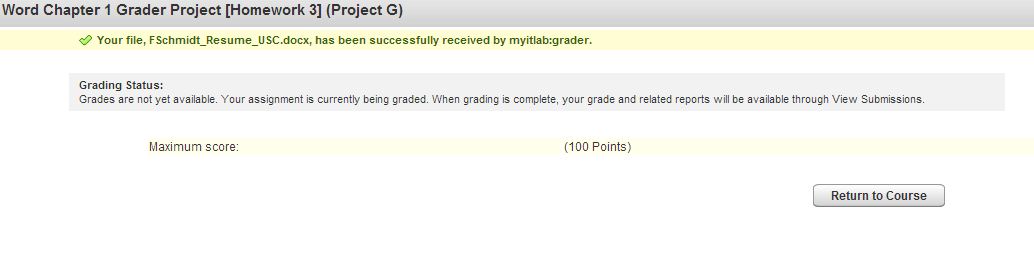
DOWNLOAD STARTING FILES
STEPS #1 & 2: GETTING STARTED DOWNLOADING
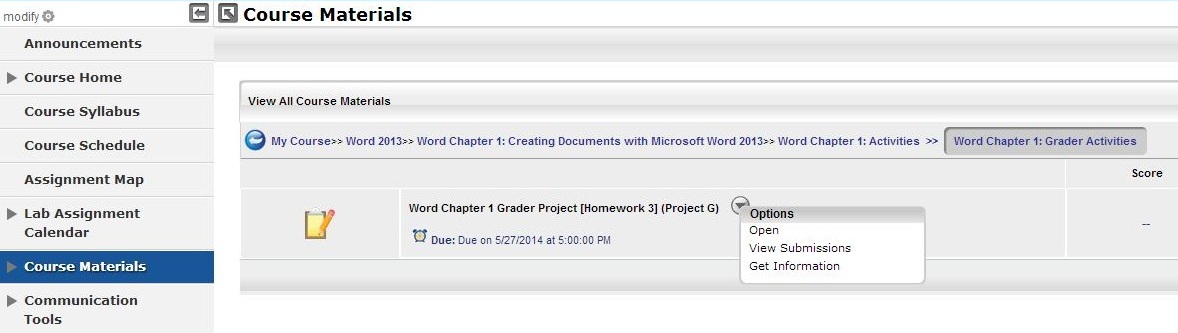
STEP #1: DOWNLOAD Instructions
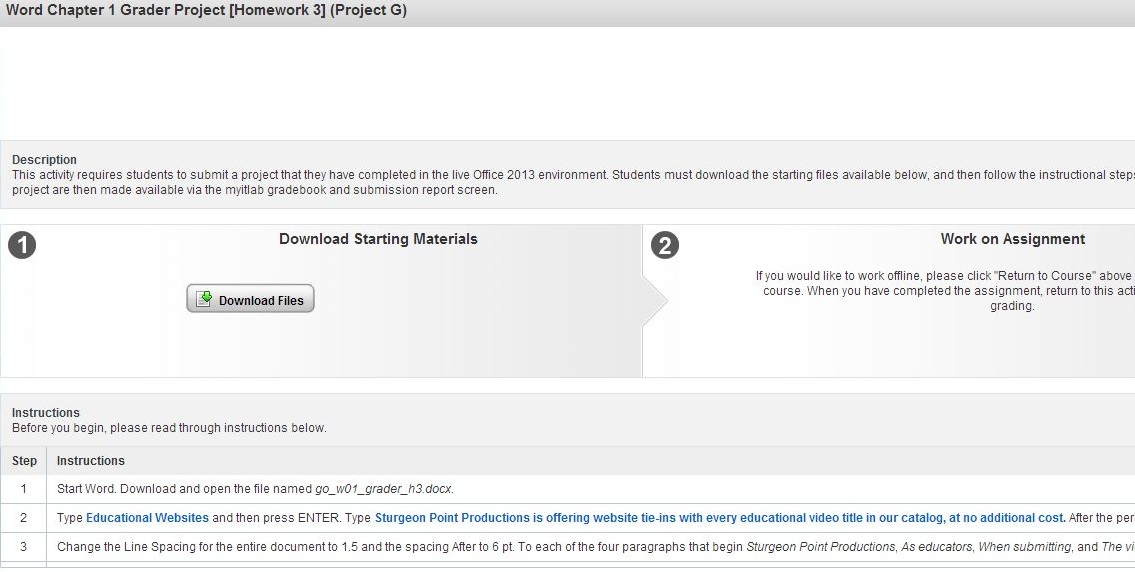
STEP #2: DOWNLOAD Instructions
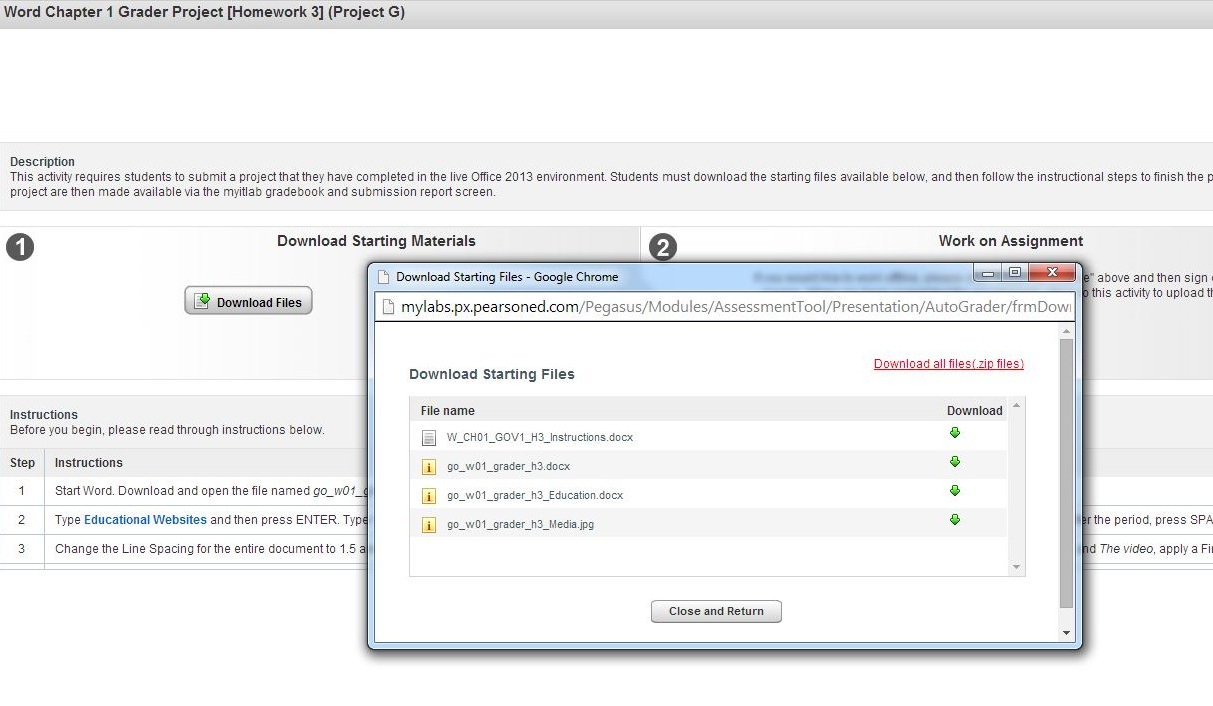
STEP #3: DOWNLOAD Instructions
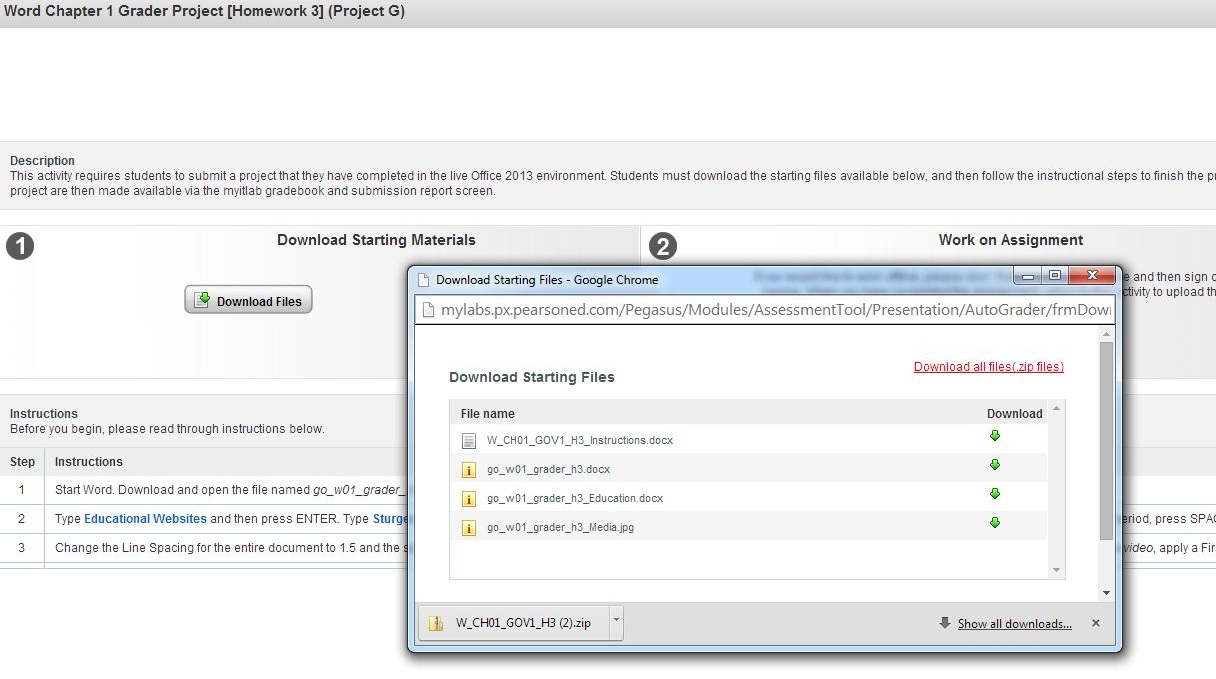
STEP #4: DOWNLOAD Instructions
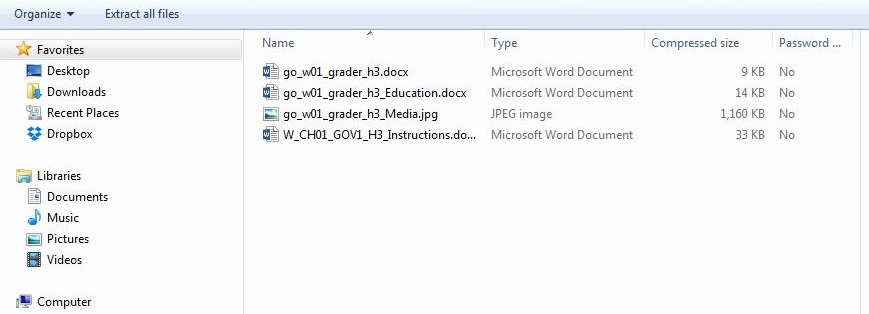
UPLOADING COMPLETED FILES
STEPS #1 & 2: GETTING STARTED UPLOADING
STEP #1: UPLOAD Instructions
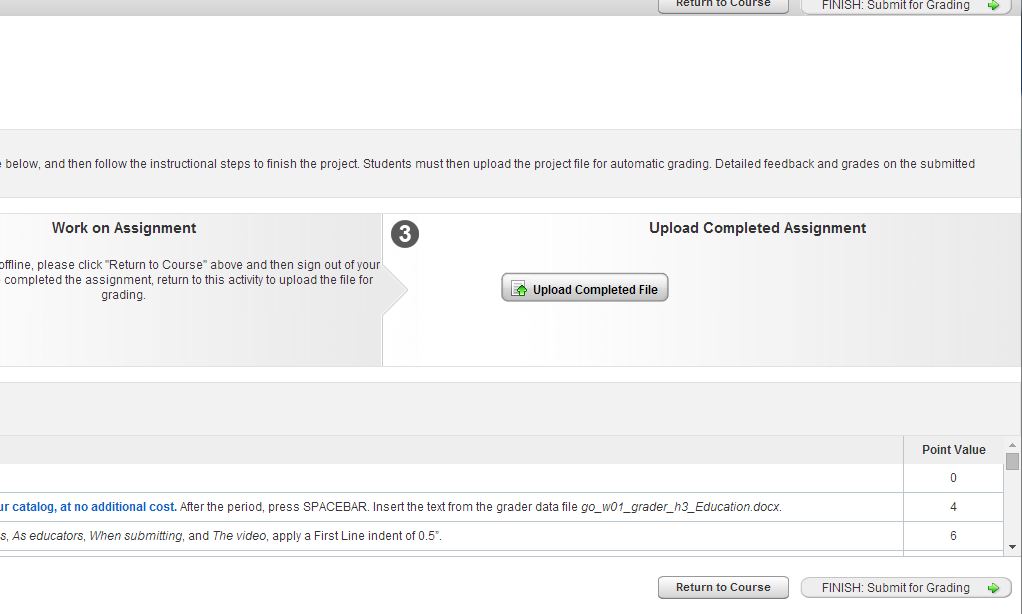
STEP #2: UPLOAD Instructions
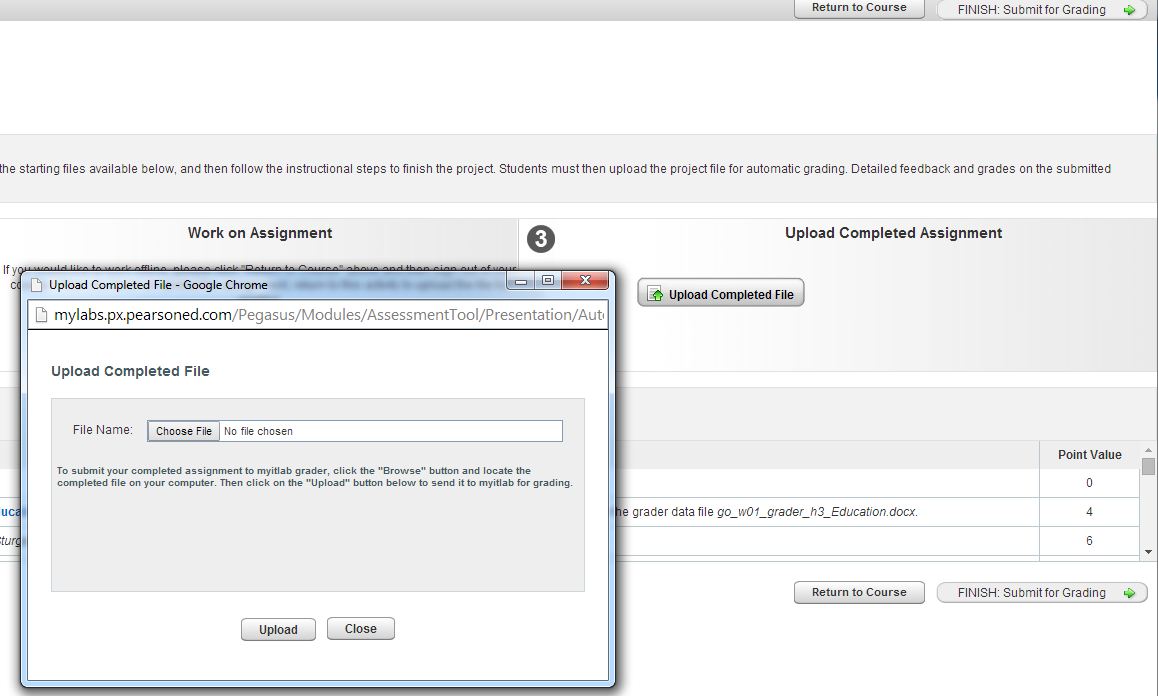
STEP #3: UPLOAD Instructions

STEP #4: UPLOAD Instructions
STEP #5: UPLOAD Instructions