LOCATING and BEGINNING ASSIGNMENTS
Inside Pearson Online Lab - MyITLab
Professor Schmidt's MIS/CS Courses
***
WEBSITE LINKS
***
COURSE LINKS



NOT SURE WHERE/HOW to GET STARTED?
*IMPORTANT*
RUN BROSWER TUNE-UP
-
Link Located in the Online Lab under the MINF2201 Course Home Tab
-
This Updates MORE Than Just the Browser!
USE GOOGLE CHROME OR FIREFOX BROWSERS
-
Both of the above can be downloaded for FREE
-
Do Not Attempt to use Windows Explorer or Safari browsers
READ 'MAKING SENSE OF THE LAB'
-
Located by Clicking the MINF2201 Course Home Tab within the lab
-
Be sure to familiarize yourself with the lab before beginning assignments
READ ALL of the LAB ANNOUNCEMENTS
-
Located by Clicking the Announcements: Current Tab within the lab
LOCATING and BEGINNING ASSIGNMENTS
- Graded Assignments can be
found in multiple locations. Take a look at them all and determine
which visual you prefer.
- My Website: Course
Schedule/Assignment Map webpage. Both
the Course Schedule and the Assignment Map display Graded
Assignments ONLY.
- The Course Schedule lists the assignments by Actual Due Date, Text Chapter, as well as displaying holidays, weeks without due dates, and eventually iCareer Seminar Dates.
- The Assignment Map displays Graded assignments by module, text book, point values, and date ranges yet, it does not show actual individual due dates.
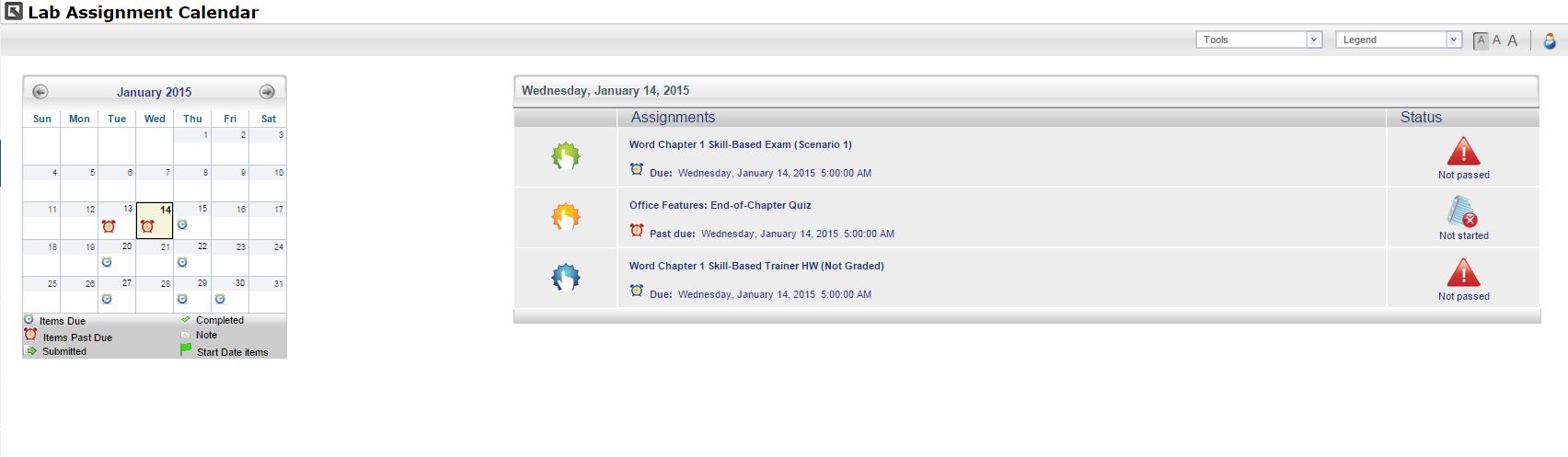
- Pearson Lab: Assignment Calendar. (Click for Picture)The Calendar Displays All Graded Assignments along with the Syllabus Quiz (required but not graded) and SBT-HW's (not graded but highly recommended).
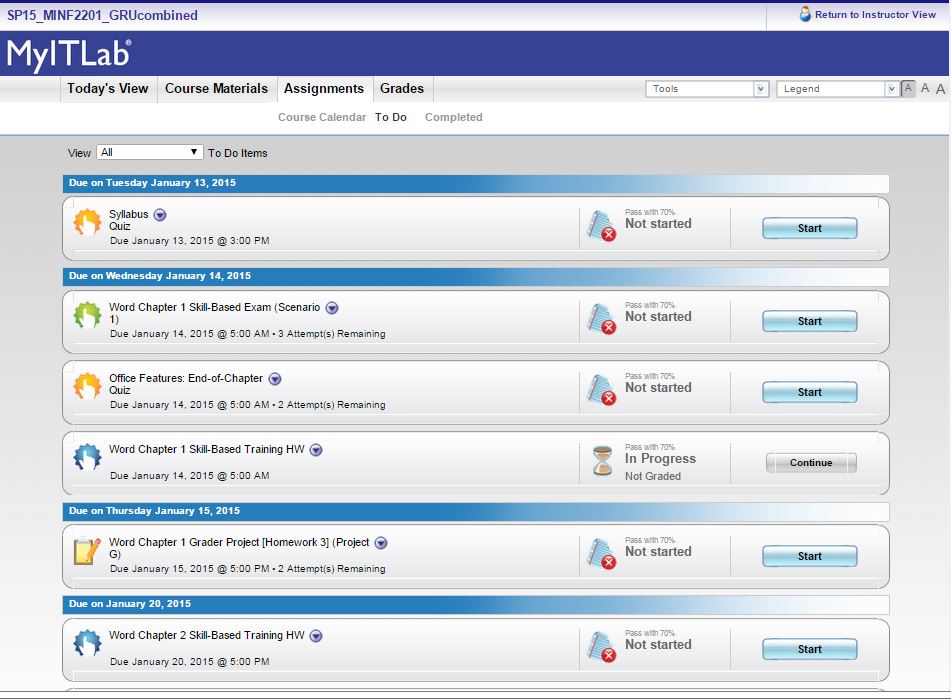
- Pearson Lab: To Do List. (Click for Picture) Opens a Separate webpage that Provides Toggle Capability between Course Materials, Assignments (calendar and list view), Grades, and Notifications.
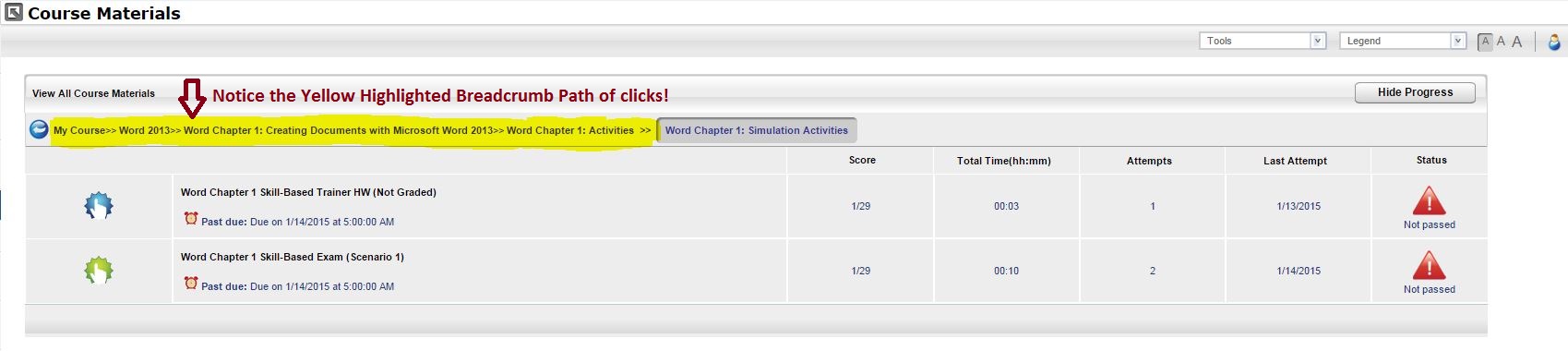
- Pearson Lab: Course
Materials.(Click
for Picture) Course
Materials section Houses and Displays EVERYTHING via Folders.
- Syllabus Quiz: A grade of 90% or higher is required prior to beginning graded course assignments.
- MAIN FOLDER: Links to Professor Schmidt's website, Textbook companion sites, Course Syllabus, etc.
- E-TEXT FOLDER: Downloads for various mobile devices, direct access to the entire e-text, and option to purchase $35 whole punched text (for students that opted for no physical text)
- COURES CONCEPT
FOLDERS: (Office Features, Word, PowerPoint, Excel,
TIA-Technology in Action)
Provides Access to Online
Resources for study assistance (PowerPoint, Study Guides,
Flash Cards, Videos, Trainer HWs, Etc.) AND Access to graded
course assignments and Trainer HW's.
- GRADED ASSIGNMENTS
are always located in the ACTIVITIES FOLDERS
- Example Path to GRADED Assignment: Click Module Folder (Word), Chapter Folder (Ch1), Activities Folder, and then either Simulation Activities Folder, for Trainer Exams (Trainer HWs are also here even though they are not graded) OR Grader Activities Folder, for Grader Projects
- RESOURCES are
located in STUDENT RESOURCE FOLDERS
- Example Path to RESOURCES: Click Module Folder (Word), Chapter Folder (Ch1), Student Resource Folder, and the appropriate folder for your preferred resources (Videos, PowerPoints, companions website link, e-text, etc.)
- Videos: There are various types of videos. Take a Peak of each kind and utilize the style you like best!
- Companion Websites: Contain multiple types of Information and Activities to help any learner! (Mulitple Choice Chapter Review, Glossary, Crossword Puzzles, Flip Boards, Flash Cards, Matching, Project pages from the text, and more!)
- PowerPoint: There are two types
of PowerPoint and Audio. The Audio PowerPoints are a
great lecture substitute for online courses!
- GRADED ASSIGNMENTS
are always located in the ACTIVITIES FOLDERS
- My Website: Course
Schedule/Assignment Map webpage. Both
the Course Schedule and the Assignment Map display Graded
Assignments ONLY.
HOW TO: (SBTE) SKILL BASED TRAINER EXAMS
BE SURE:
- All of these Steps are Completed Before the individual Assignment's Deadline!
-
To view teh MINF Course Resource Links on the MINF2201 Homepage of Professor Schmidt's website for help with Difficult Questions, Tips and Tricks, Review Submissions, Grader Project Upload/Download, Picture examples, etc.)
- Be sure to work the Trainer HW's FIRST! While
the points are not counted toward the overall course grade,
completing the SBT-HW prior to the SBT-Exam will:
- Save you time by ensuring you complete the Trainer Exam within the allotted amount of time
- Result in a higher overall performance on teh SBTE
- May prevent you from needing to utilize your 2nd
and/or 3rd attempt at the Exam in order to achieve the
desired grade.
*Run into Trouble on the Trainer HW? Take a look at the Concept Help Webpage with hints on Known Trouble Spots!
- Log into the Lab and Locate the desired SBTE (using your preferred view of the assignments within the Online lab (See Above)) and then Click on the Trainer Exam Icon or Click on the drop down arrow and select open
- Enter the Exam and complete the steps (almost identical to the Trainer HW steps) within the 75 minute time limit.
- Click Submit. If you click the 'x' at any time it will automatically submit your Trainer Exam or HW requiring you to begin again if necessary.
- Review Your Submission by Clicking on
the Grades Tab and selecting Review Submission
*Take a look at my ' Review Your Submissions Webpage ' with visuals and instructions on how to utilize this Awesome Lab Tool - Determine if:
- You are ready to move on to the Grader Project or
- You prefer to Review Steps within the Trainer HW or other resources and utilize the 2nd and/or 3rd attempt at the Trainer Exam.
|
BE SURE:
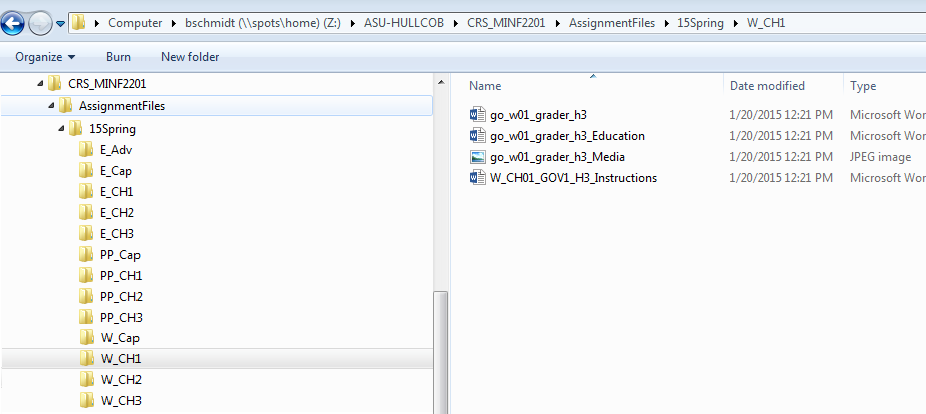
EXAMPLE OF 'ORGANIZED FOLDER SYSTEM' MENTIONED IN #4 UNDER HOW TO: GRADER PROJECTS
|