|
 |
|
|
 (30
pts) Create a basic Excel worksheet (30
pts) Create a basic Excel worksheet
- Review the
Excel 101 video.
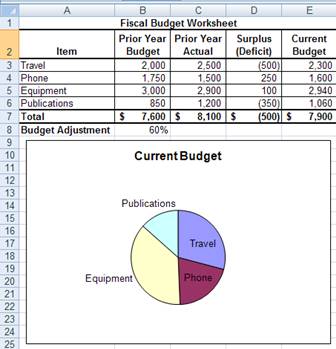
- Create an Excel worksheet named Budget.xslx which meets the
following specifications and layout
- Prior Year Budget and Prior Year Actual columns and the
Budget Adjustment (percent in Cell B8) are plugged numbers; all
other value cells should be derived using formulas.
- Surplus(Deficit) is calculated as Prior Year Budget – Prior
Year Actual.
- Current Budget is calculated as Prior Year Budget – Budget
Adjustment * Surplus(Deficit) and the formula should use an
absolute reference to Budget Adjustment.
- The Total row contains simple column totals.
- The pie chart should appear with the spreadsheet and show
how the Current Budget is divided among the budget components.
- Formatting similar to that in the screen shot and a
'pleasing' placement of charts is expected.
- In addition to the example data, add a row for Entertainment
with Prior Year Budget equal to $1000 plus the last
3 digits of your 927 number and Prior Year Actual equal to $2000
minus the last 3 digits of your 927 number.
Spreadsheet totals and the pie chart should include these data.
- Beyond the video: Revise the formula for
Current Budget from 2.3 above so that when Surplus(Deficit) is
negative (i.e., a deficit) only half the Budget Adjustment
percentage is applied. Hint: Lookup help on the Excel IF function
and use Budget Adjustment / 2 as the multiplier when Surplus(Deficit)
< 0.
- Beyond the video: In addition to the pie chart
include a column chart which shows three columns for each budget
item: Prior Year Budget, Prior Year Actual, Current Budget. Place
the column chart below or to the right of the pie chart. Hint: Use
help on column charts in Excel.
- Save the completed Budget.xslx and Submit through your MIS lab.
(20 pts) Practice with introductory Excel pivot tables
- Review the
Excel Pivot Tables video which focuses on this particular
example.
- Download and use the
AdventureWorksCustomers spreadsheet as a starting point; it
shows AdventureWorks customers attributes including whether they
have purchased a bicycle.
- In the following inquiries be sure pivot table clearly shows the
answer to the query question:
- Add a tab named EdOcc which analyzes the percentage of
AdventureWorks customers who purchased bicycles for every
combination of Education and Occupation.
- Add a tab named IncAnaly which provides the average income
for every combination of Marital Status & Gender.
- Add a tab named AvgAge which provides the average age of
customers who purchased bicycles.
- Beyond the video: Add a tab named
ChildrenAndCars show the average and standard deviation of
income for every combination of Children and Cars.
- Beyond the video: Add a tab named OccReg
which shows a count of customers for each Occupation and Region.
- Save the completed spreadsheet and submit through MIS lab.
|
|
|
|
|